Labels from text on a page
- 1Select the text on the page.
- 2Right-click it and pick Print as labels.
- 3Pick what you're making and your label sheet.
- 4Click Download PDF.
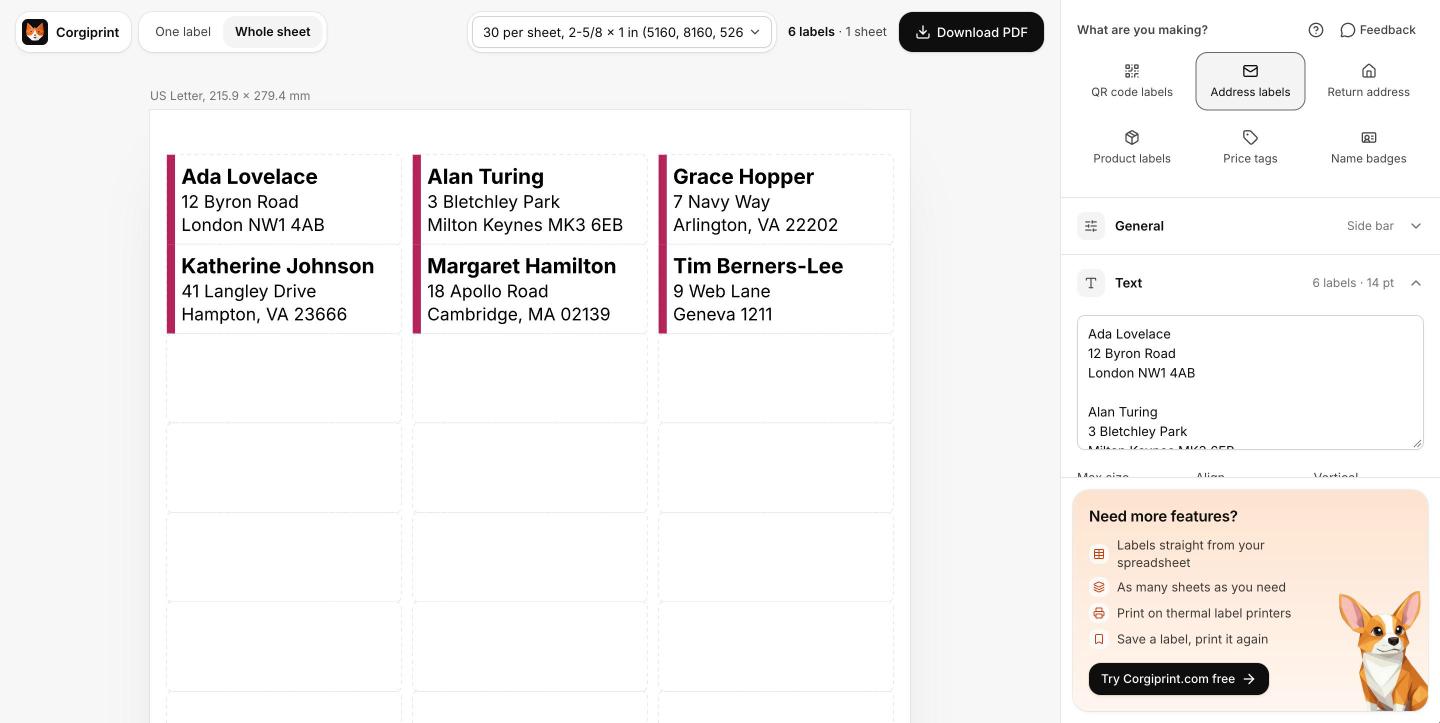
Empty lines between blocks of text make one label per block, for addresses.
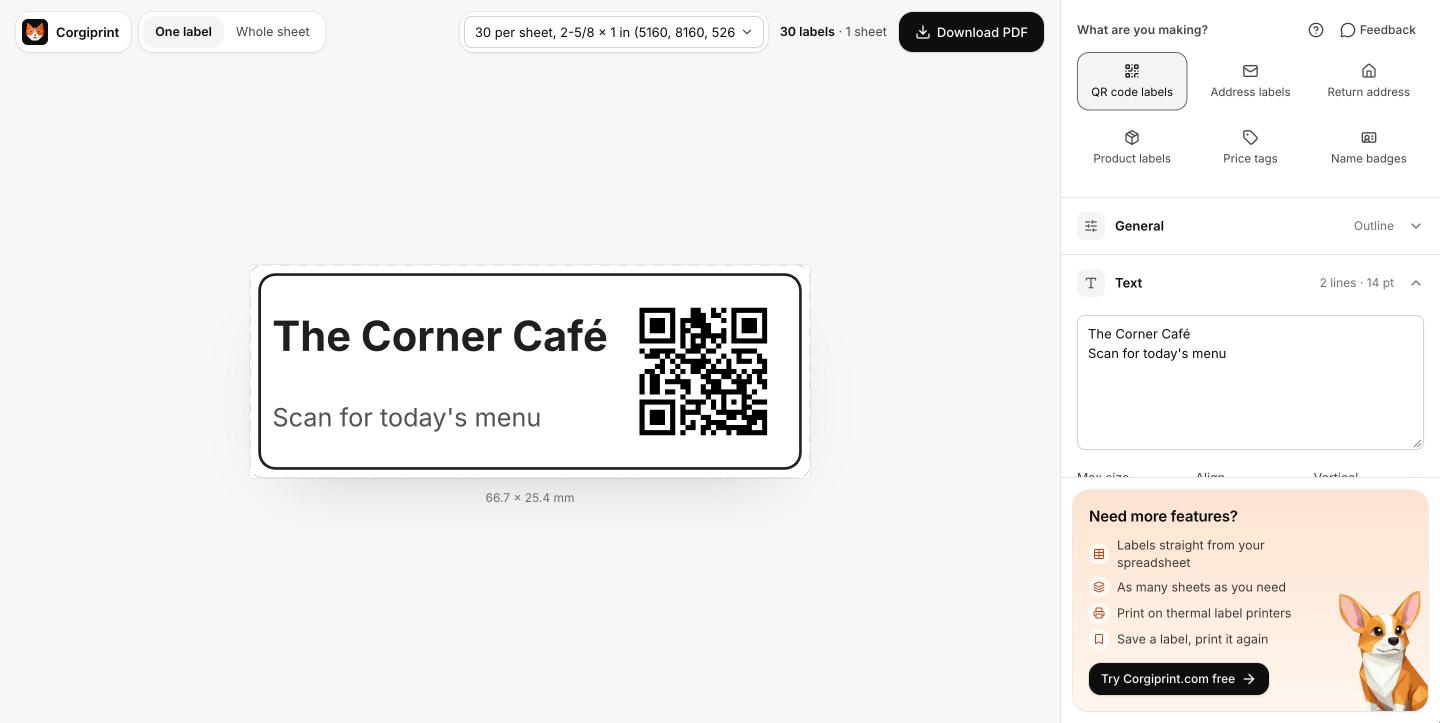
QR code labels
- 1Right-click an empty spot on the page, or a link.
- 2Pick QR code label for this page, or QR code label for this link.
- 3Add a line of text if you like, then download.
An image on labels
- 1Right-click the image and pick Print image on labels.
- 2If you see Load images from this site?, click Allow.
- 3Pick your sheet and download.
Printing at the right size
- 1Open the PDF.
- 2Print at Actual size (100%), not Fit to page.
- 3Labels still off? Print the printer test page once.
A partly used sheet
- 1Open the Sheet group.
- 2Set Start at label to the first free label.
The right-click item is missing
- 1Chrome keeps extensions off its own pages (chrome:// pages, the Chrome Web Store) and PDFs.
- 2Open an ordinary web page and try again, or click the Corgiprint icon and type your text.
More than one sheet
- 1Click Open Corgiprint.com when the note appears. Your label goes with you.